
Download Telepad - Desktop – remote desktop, control pc from phone, desktop control, bluetooth control, wifi control
Overview
Telepad - Desktop is a Windows-based utility designed to transform your smartphone into a remote control for your personal computer. By leveraging Bluetooth or WiFi connectivity, users can manage their PC without physical interaction with a keyboard or mouse. This application targets individuals seeking convenience and flexibility in their digital workflow, particularly those who prefer to control media playback, manage documents, or navigate windows from a distance—such as while relaxing on a couch or during presentations.
The app functions as a bridge between mobile and desktop environments, enabling seamless interaction across devices. It is especially useful for users who want to minimize physical movement between their computer and mobile device. Real-world applications include managing streaming content, adjusting window layouts, or typing long documents from a more comfortable position. The developer, Telepad, has positioned this tool as a lightweight, accessible solution for users who value mobility and ease of access within their home or office setup.
Telepad - Desktop operates within the broader ecosystem of remote access tools, offering a streamlined alternative to more complex solutions. While it does not claim to replace full remote desktop software, it excels in delivering essential control functions with minimal setup. The app’s focus on simplicity and immediate usability makes it a relevant utility for casual users and productivity enthusiasts alike.
Key Features & Functionality
- Remote PC Control: Enables users to operate their Windows PC using their smartphone, allowing typing, window management, and media control without touching the physical keyboard or mouse.
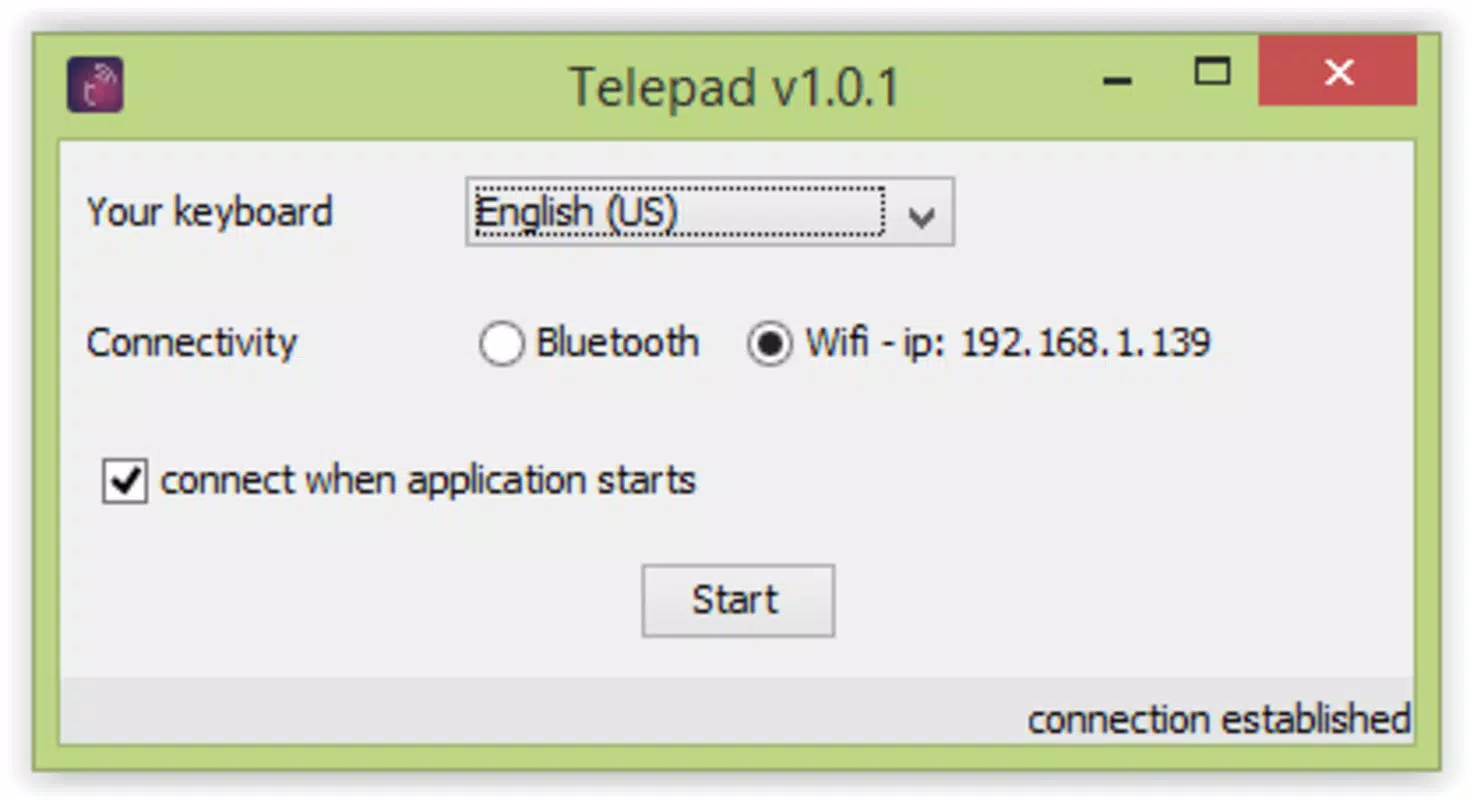
- Bluetooth and WiFi Connectivity: Supports connection via Bluetooth or the same WiFi network, offering flexibility based on user preference and device availability.
- Simple Setup Process: Users can begin using the app by downloading the companion Android application and connecting to their PC through a straightforward pairing process.
- Intuitive Interface: Features a clean, minimal design that displays essential controls and settings clearly, reducing learning curves for new users.
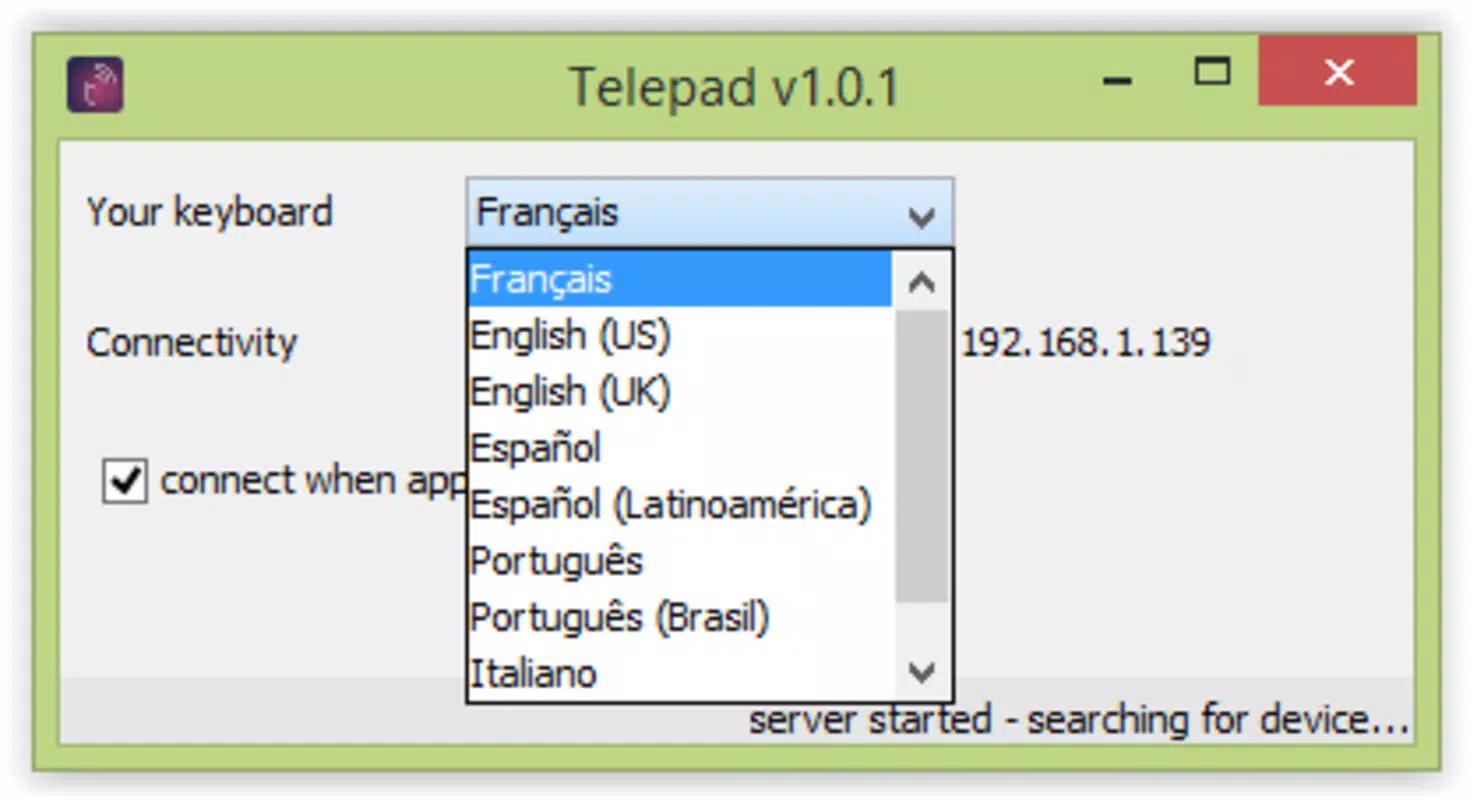
- Language Customization: Offers multi-language support, including English, German, French, Portuguese, and Spanish, enhancing accessibility for international users.
- Stable Connection Management: Maintains consistent control as long as both devices remain connected to the same network or Bluetooth pairing, ensuring uninterrupted operation during daily tasks.
For example, a user can start a movie on their PC and pause or adjust volume directly from their phone while lying on the couch. Similarly, during a work session, someone can switch between open applications or copy text using their phone’s virtual keyboard. These use cases highlight how Telepad - Desktop enhances comfort and efficiency in everyday computing.
Interface, UX & Performance
The user interface of Telepad - Desktop is designed with simplicity and clarity in mind. The layout prioritizes essential functions, placing control buttons, keyboard options, and connection status in easily accessible locations. Visual cues are minimal but effective, ensuring users can navigate the app without confusion.
Navigation is linear and intuitive, allowing users to adjust settings such as keyboard language or connection preferences with just a few taps. The responsiveness of the interface is consistent, with actions like typing or window switching executing promptly. Although the developer did not list formal performance metrics, the app maintains a stable experience across various device categories, suggesting optimized resource usage.
Stability is a notable strength, with the app retaining connection integrity when both devices are on the same network or paired via Bluetooth. No reported issues with lag or disconnection were mentioned in the available data. The app’s lightweight footprint—15.4 MB—contributes to its smooth operation, minimizing impact on system resources.
Platform Compatibility & Technical Requirements
Telepad - Desktop is designed for the Windows platform, making it compatible with a wide range of desktop and laptop systems running Windows OS. The application is available in version 1.0.0 and has a file size of 15.4 MB, indicating a compact and efficient design.
Specific requirements for operating system versions were not listed by the developer. The app’s compatibility with different Windows editions (such as Windows 10 or Windows 11) was not explicitly confirmed. Similarly, no details were provided regarding minimum hardware specifications or network bandwidth requirements.
While the app supports both Bluetooth and WiFi connections, the exact Bluetooth version or WiFi standards used were not disclosed. Users are advised to ensure both devices are on the same network or paired via Bluetooth for optimal functionality.
Pros and Cons
Pros
- Lightweight design with minimal system resource usage.
- Simple setup process requiring only an Android app and network connection.
- Supports both Bluetooth and WiFi for flexible connectivity.
- Intuitive interface suitable for users of all technical levels.
- Multi-language support enhances accessibility for global users.
- Free to download and use, with no in-app purchases or hidden costs.
Cons
- Developer did not provide detailed system or network requirements.
- Compatibility with specific Windows versions was not confirmed.
- No information on app updates or future development roadmap.
- Limited to Windows platform—no support for macOS or Linux.
- Only supports Android as a control device; iOS users cannot participate.
FAQ
Is Telepad - Desktop secure?
The app uses local network or Bluetooth connections, which are generally secure when used within trusted environments. No data is transmitted over the internet, reducing exposure to external threats.
Can I use Telepad - Desktop on iOS?
Currently, the app is only compatible with Android devices. There is no official iOS version available.
Do I need a constant internet connection?
No. The app operates over local WiFi or Bluetooth, so an active internet connection is not required for remote control functionality.
What devices are compatible with Telepad - Desktop?
It is designed for Windows PCs and Android smartphones. Specific compatibility with older Windows versions or low-end devices was not listed.
How often is the app updated?
The developer has not disclosed an update schedule or frequency. Users should monitor official channels for new releases.
Final Thoughts
Telepad - Desktop delivers a focused, user-friendly solution for controlling a Windows PC from a smartphone. Its minimal design, combined with reliable Bluetooth and WiFi connectivity, makes it ideal for users who value convenience and simplicity. The app excels in everyday tasks like media control, document management, and window navigation, offering a practical alternative to traditional input methods.
While it lacks advanced features found in full remote desktop software, its strength lies in accessibility and ease of use. The free pricing model and multi-language support further enhance its appeal across diverse user groups. For anyone looking to streamline their desktop experience with a mobile device, Telepad - Desktop is a compelling choice.
Download Telepad - Desktop now


